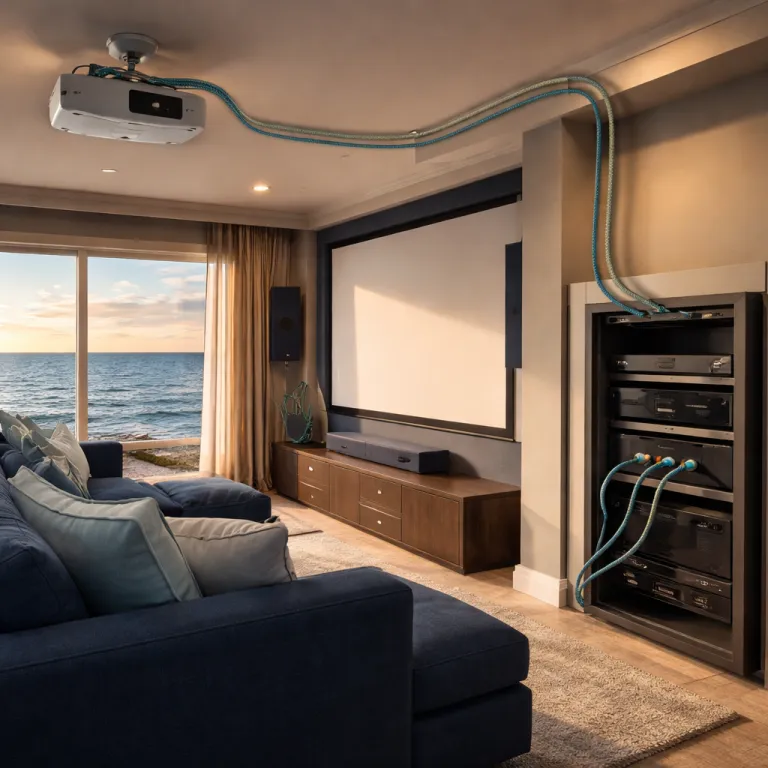
Why HDMI 2.1 matters in a modern projector chain
For a serious home cinema, an HDMI 2.1 projector setup is less about buzzwords and more about matching features to your actual devices. When you connect a gaming console, a streaming device and a 4K Blu ray player to long throw projectors, the weak link is usually the HDMI cable and not the projector itself. Treat every device, every port and every video output as part of one chain, because one outdated HDMI input can silently cap performance.
HDMI 2.1 raises bandwidth to 48 Gbps, which allows 4K at 120 frames per second with HDR and advanced gaming features like Variable Refresh Rate and Auto Low Latency Mode. The HDMI Forum’s published specification lists 48 Gbps as the maximum data rate, and console makers such as Sony and Microsoft rely on that headroom for 4K/120 output on PlayStation 5 and Xbox Series X. If you never game and your projector HDMI chain only handles 4K at 60 frames per second from a streaming device, then a well made HDMI cable rated for HDMI 2.0b is usually enough. The moment you add a PlayStation 5, Xbox Series X or a high end laptop projector combination, every device cable between source and projector must support HDMI 2.1 or the chain will silently fall back to older modes.
Think of the HDMI port on your laser projector as the final gatekeeper, because a projector with only HDMI 2.0b inputs can never show 4K at 120 frames per second even if the source and cable are perfect. In that case, the correct HDMI strategy is to prioritize stable 4K at 60 frames per second with accurate HDR tone mapping instead of chasing frame rates the projector cannot display. A practical HDMI 2.1 projector setup starts with a list of devices, their HDMI port specifications and the maximum screen resolution and refresh rate you actually use, ideally checked against the manufacturer’s spec sheet or on screen info panel.
When you connect projector and receiver, avoid daisy chaining cheap HDMI splitter boxes that promise miracles but often break HDR or audio formats. In many user reports and vendor FAQs, low cost splitters are the first thing support teams ask you to remove when troubleshooting handshake problems. A quality HDMI splitter can be useful when you need one device cable to feed both a projector and a secondary screen, yet every extra HDMI input and output adds another failure point. For most home theaters, fewer devices in the HDMI connection path means fewer handshake issues and faster screen mirroring from laptops or tablets.
Gamers should map which HDMI port on the projector supports the full feature set, because some projectors label one HDMI input as “Game” or “8K” while the others are limited. On several popular laser projector models, only a single port is wired for 48 Gbps, while the remaining inputs top out at 18 Gbps. Use that port connect path for consoles or a gaming PC, then reserve the remaining HDMI ports for slower devices like a streaming device or older Blu ray player. This simple select correct habit prevents you from accidentally plugging a high bandwidth device into a limited input and wondering why the image never reaches the expected quality.
Placing the AVR in the chain and using eARC correctly
Most enthusiasts run every device into an AV receiver, then send a single HDMI cable up to the projector, because that keeps audio switching simple. In a modern HDMI 2.1 projector setup, the choice is between routing video through the receiver or sending video directly projector and returning audio via eARC. The right answer depends on whether your receiver supports full bandwidth HDMI 2.1 on the output and on enough HDMI input ports.
If your AV receiver only supports HDMI 2.0b, but your laser projector and console both support HDMI 2.1, then routing the console through the receiver will cap you at 4K at 60 frames per second. In that case, connect HDMI from the console directly projector using a certified Ultra High Speed HDMI cable, then use the projector HDMI eARC port to send lossless audio back down to the receiver. This keeps the video output path clean for gaming while still allowing Dolby Atmos or DTS:X audio through the receiver’s audio input and speaker system.
eARC, or enhanced Audio Return Channel, is the only HDMI feature that reliably carries full bandwidth lossless audio formats from a projector back to an AV receiver or soundbar. Regular ARC is fine for compressed Dolby Digital Plus from a streaming device, but it can choke on higher bitrate tracks from a disc player or high quality media server. When you select correct ports, always pair the projector’s eARC HDMI port with the receiver’s eARC labeled HDMI input, and avoid using an HDMI splitter between them.
Some owners prefer to keep every device connected to the receiver for simpler control, especially when using CEC to power on the projector, receiver and streaming devices together. This works well if the receiver has at least one HDMI 2.1 output and enough HDMI 2.1 capable inputs for your console, gaming laptop and any future device. If not, a hybrid layout with one direct HDMI connection for gaming and the rest through the receiver often gives the best balance between performance and convenience, especially when you later add advanced tools like a 4 channel HDMI encoder for multi room video distribution.
Remember that every HDMI port connect decision affects cable length, which matters more with projectors than with televisions because the screen is usually several metres away. Long throw projectors mounted at the back of the room often need 10 to 15 metre HDMI cable runs, and those runs are more reliable when you minimize unnecessary adapters and splitters. Before you commit, sketch a quick diagram of the HDMI 2.1 projector setup on paper, mapping each device cable, each input and each output, then check that the planned lengths match the cable types you intend to use.
Choosing the right HDMI cables for long projector runs
Projectors punish weak cabling, because the distance between rack and screen is often two or three times longer than in a television setup. A stable HDMI 2.1 projector setup over 10 to 15 metres demands more than a random cable from an online marketplace, especially when you push 4K at 120 frames per second with HDR. Treat the HDMI cable as a critical component, not an afterthought, because a bad connection can mimic projector faults.
Passive copper HDMI cables work reliably up to around 5 metres for HDMI 2.1 bandwidth in most real world tests, while longer runs often require active copper or active fibre optic designs. Many cable vendors list 3 to 5 metres as the practical limit for full 48 Gbps on passive leads, and in home installations you will often see intermittent dropouts if you push beyond that. For a ceiling mounted laser projector at the back of a room, an active fibre HDMI cable rated for 48 Gbps is usually the safest choice, because it maintains signal integrity over long distances. Always check that the HDMI input on the projector and the HDMI port on the source both support the same HDMI version and features, then match the cable to that requirement.
Active HDMI cables and fibre optic HDMI cables are directional, which means the source and display ends are fixed and must be respected. If you accidentally reverse them when you connect projector and receiver, you may see intermittent video, no audio or a total lack of signal, which often gets blamed on the projector. Before you seal any cable in a wall or conduit, test the full HDMI 2.1 projector setup with every device and every video output mode you plan to use, including 4K at 120 frames per second if your hardware supports it.
When you need to feed both a projector and a secondary screen, a powered HDMI splitter can be useful, but it must also support HDMI 2.1 if you expect 4K at 120 frames per second. Cheap HDMI splitter boxes often negotiate down to the lowest common denominator device, which can force your entire chain into 1080p or SDR even if the projector and primary screen can handle more. For complex installations with multiple projectors or distributed screens, consider professional tools such as an HDMI digital IP encoder that can move video over Ethernet while keeping the main HDMI connection short and robust.
Do not forget the humble USB and power side of the chain, because some active HDMI cables draw power from a USB port near the projector or receiver. Plan where you will connect USB power so that the active electronics in the cable remain stable, especially when the projector is ceiling mounted and hard to reach. A careful HDMI 2.1 projector setup that respects cable direction, power needs and port labeling will save you hours of troubleshooting later.
Lip sync, CEC control and avoiding everyday usability traps
Once the picture looks right, the next battle in any HDMI 2.1 projector setup is keeping audio and video in sync. Lip sync errors usually come from video processing in the projector or audio processing in the receiver, not from the HDMI cable itself. When a long throw laser projector applies heavy frame interpolation or noise reduction, it can delay the image by tens of milliseconds while the audio races ahead.
Auto lip sync over HDMI tries to fix this by letting the projector report its processing delay to the receiver, which then holds back the audio to match. This works well when every device in the chain implements the standard correctly, but many mixed brand setups still need manual adjustment in the receiver’s audio menu. Aim for a setting where dialogue on screen feels locked to mouth movements, then test with both streaming devices and disc players, because different sources can behave differently.
CEC, or Consumer Electronics Control, lets one remote power on multiple devices and switch inputs automatically, which is especially helpful when the projector is ceiling mounted. In a clean HDMI 2.1 projector setup, you can press play on a streaming device and have the receiver, projector and even a motorized screen wake up in sequence. The downside is that CEC commands can conflict when too many devices try to control the same HDMI input or output, leading to random input changes or power offs.
To keep control predictable, decide which device will be the “boss” and disable CEC on less important devices, such as older Blu ray players or a spare laptop. Use clear names for each HDMI input on the receiver and projector, so that when you select correct sources you always know which device cable you are activating. If CEC becomes more trouble than it is worth, turn it off entirely and rely on a universal remote or control system instead.
Screen mirroring from a laptop or tablet introduces another layer of complexity, because wireless protocols add latency and sometimes force lower resolutions than a direct HDMI connection. For critical movie nights or gaming sessions, a wired HDMI cable from the laptop projector combination will always beat wireless screen mirroring in stability and quality. Think of wireless options as convenient for casual viewing, while the wired HDMI 2.1 projector setup remains the reference path for serious content.
Practical layouts for different rooms and projector types
Room layout dictates how ambitious your HDMI 2.1 projector setup can be, because cable runs, device placement and screen size all interact. A compact living room with a short throw or ultra short throw laser projector near the screen often needs only a 3 to 5 metre HDMI cable, which makes full bandwidth HDMI 2.1 much easier. A dedicated cinema with a long throw projector at the back wall might need 15 metres of HDMI, careful routing and possibly fibre optic cabling.
In a simple living room, you can place the receiver, streaming device and game console in a low cabinet under the screen, then run one HDMI cable up to the projector. This keeps every device cable short, simplifies troubleshooting and makes it easy to connect USB power for active HDMI cables if needed. When you add ceiling mounted speakers or height channels, plan the projector HDMI path alongside speaker wiring, and consider how ceiling mounted speakers elevate immersive home theater sound in relation to your video chain.
Dedicated rooms with multiple projectors or complex audio layouts benefit from a more structured approach, where you treat the rack as the hub and the projector as just another endpoint. In these cases, label every HDMI port connect point, every audio input and every output on the receiver or matrix, then maintain a simple order tracker style diagram of the chain. This makes it far easier to diagnose whether a problem lies with the projector, the HDMI cable, the streaming device or the receiver.
When you connect projector and gaming devices, prioritize the shortest and cleanest path for the most demanding source, usually the console or gaming PC. Less demanding sources like a basic streaming device or older laptop can tolerate an extra HDMI splitter or slightly longer cable, because they rarely push the full bandwidth of HDMI 2.1. Always reserve the best HDMI input on the projector for the most demanding device, and avoid wasting that port on a low bandwidth source.
Finally, remember that a projector is only one part of a larger AV ecosystem that includes audio, control and sometimes networked video distribution. As you expand with extra projectors, encoders or matrix switchers, revisit the HDMI 2.1 projector setup to ensure that every new device respects the bandwidth, latency and feature needs of the chain. What makes a home cinema feel truly professional is not the lumens on the box, but the last row on movie night.
FAQ
Do I really need HDMI 2.1 for my projector if I only watch movies
If you only watch films and series at 24 or 60 frames per second, HDMI 2.0b with a good quality HDMI cable is usually enough. HDMI 2.1 becomes essential when you want 4K at 120 frames per second gaming or advanced features like Variable Refresh Rate. For pure movie watching, focus more on reliable connections, proper HDR support and accurate calibration than on maximum bandwidth.
How long can an HDMI cable be for a ceiling mounted projector
For HDMI 2.1 bandwidth, passive copper HDMI cables are reliable up to about 5 metres in most setups. Beyond that, active copper or fibre optic HDMI cables rated for 48 Gbps are safer for runs of 10 to 15 metres. Always test the full chain at your highest resolution and refresh rate before permanently installing any long cable.
Should I connect my console to the projector or the AV receiver
If your AV receiver supports full bandwidth HDMI 2.1 on the input and output, connecting the console through the receiver keeps switching and audio simple. When the receiver is limited to HDMI 2.0b but the console and projector support HDMI 2.1, connect the console directly to the projector and use eARC to return audio to the receiver. This hybrid layout preserves 4K at 120 frames per second video while still delivering high quality surround sound.
Why is there no sound when I use an HDMI splitter with my projector
Many inexpensive HDMI splitters struggle with complex audio formats or mismatched displays, and they often negotiate down to the lowest common capability. If one connected screen or device only supports stereo audio, the splitter may force stereo on the entire chain, which can appear as missing sound on some inputs. A powered HDMI splitter rated for the formats you use, or a direct connection without a splitter, usually solves the issue.
How can I fix lip sync issues between my projector and receiver
Start by enabling auto lip sync on both the projector and the receiver, then test with a familiar dialogue heavy scene. If the problem persists, use the receiver’s manual audio delay setting to nudge the sound later until voices match mouth movements. Reducing heavy video processing on the projector, such as motion smoothing, can also cut delay and improve sync.